

Connect with the MCP (recommended)
1
Download Google Antigravity
Download and install Google Antigravity from antigravity.google/download, open it, and sign in with your Google account.
2
Add the Hireflix MCP to the config file
Antigravity doesn’t have a form for adding custom MCP servers yet, so you add Hireflix to its configuration file instead. Open your terminal (on macOS: press The command creates the
Cmd + Space, type Terminal, and press Enter; on Windows: open PowerShell from the Start menu), then copy and run the command for your operating system..gemini/config folder and the mcp_config.json file if they don’t exist yet, and adds Hireflix to them. If the file already exists, for example because Antigravity created it or you added other MCP servers, it keeps everything that’s in there and only adds the Hireflix entry. Running it twice is safe too. When it’s done, you’ll see Hireflix MCP added to followed by the file location.Prefer to edit the file yourself?
Prefer to edit the file yourself?
Open If the file already lists other MCP servers, don’t replace them. Add only the
~/.gemini/config/mcp_config.json (macOS and Linux) or %USERPROFILE%\.gemini\config\mcp_config.json (Windows) in a text editor and add the hireflix entry. If the file is empty, paste in all of this:hireflix entry inside the existing mcpServers object.3
Force quit and reopen Antigravity
On macOS, press
Cmd + Q (or use Force Quit with Option + Cmd + Esc). On Windows or Linux, close the app and make sure it’s no longer running. Then open Antigravity again.4
Open your installed customizations
Click Customizations in the left menu (1), then switch to Installed in the top right (2).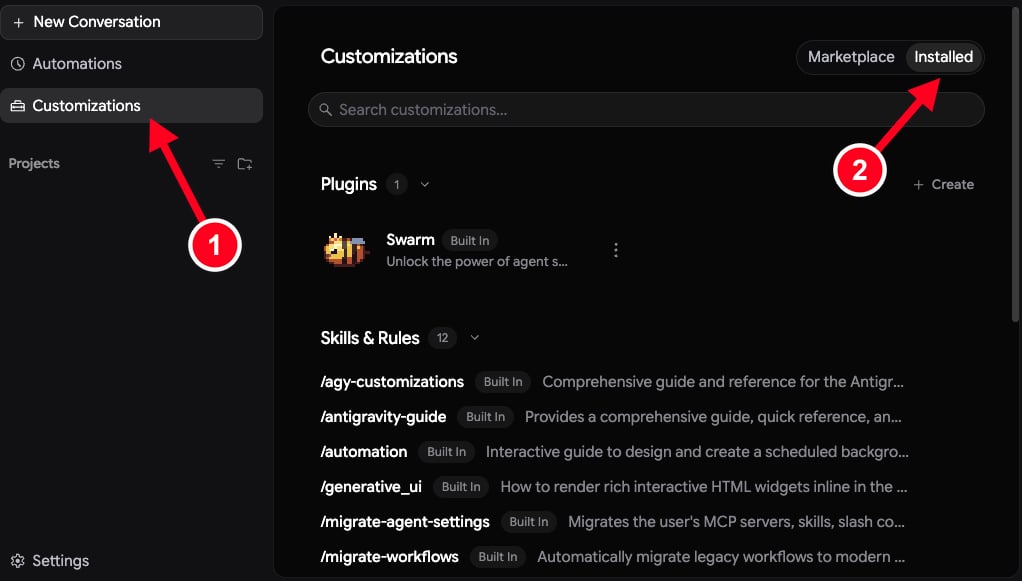
5
Click Authenticate
Scroll all the way down to the MCP Servers section. You’ll see hireflix with a red dot and the error 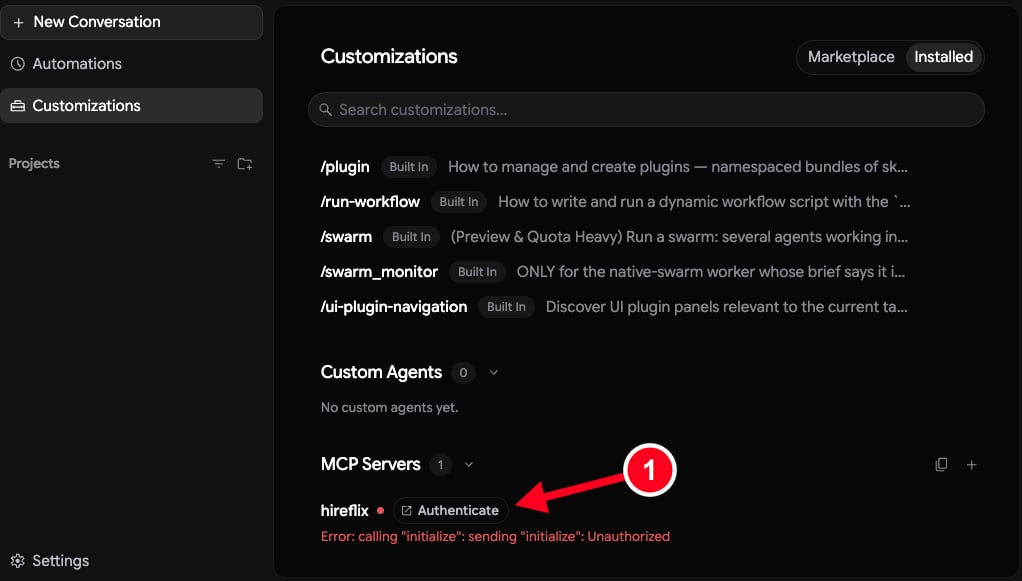
Unauthorized. That’s expected: Antigravity found the server, but you haven’t signed in yet. Click Authenticate. This opens Hireflix in your browser. If you’re not logged in to Hireflix yet, log in first.6
Allow Antigravity to access your account
Hireflix shows what Google Antigravity will be able to do. Click Allow to give it access. This lets Antigravity: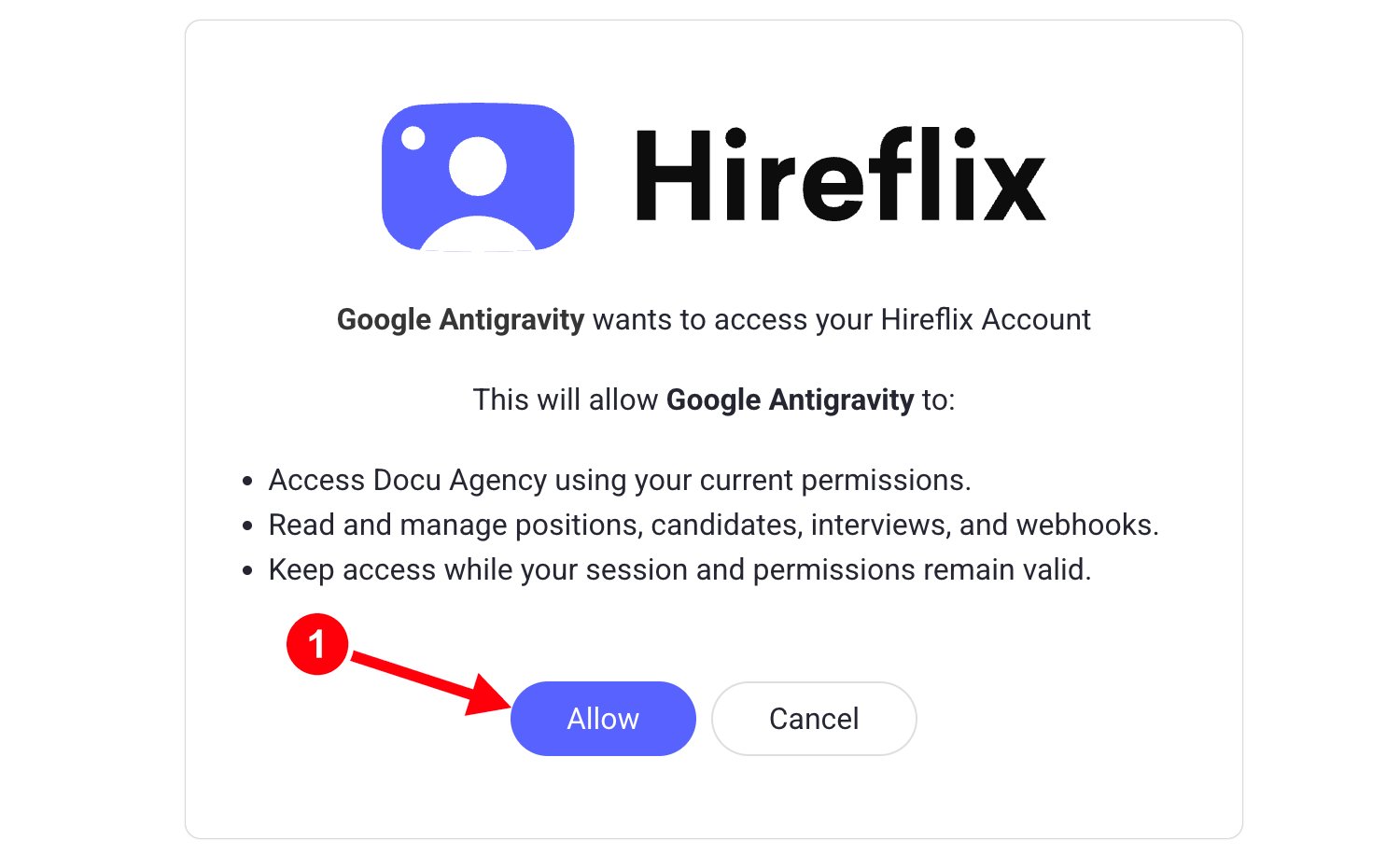
- Access your Hireflix account using your current permissions.
- Read and manage positions, candidates, interviews, and webhooks.
- Keep access while your session and permissions remain valid.
7
Copy the authorization code
Your browser now shows a Google Antigravity page with an authorization code. Click Copy to Clipboard.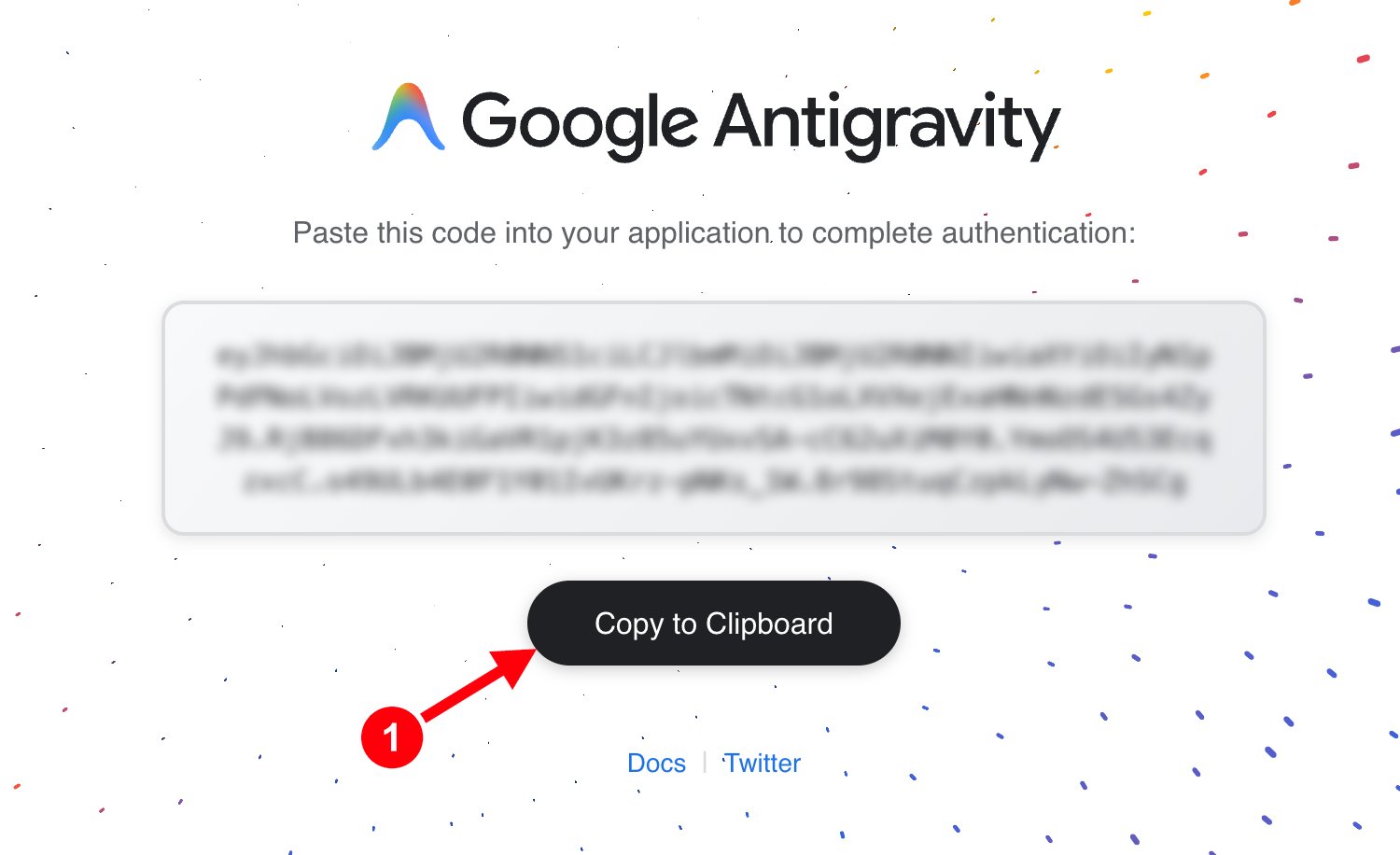
8
Paste the code in Antigravity
Go back to the Antigravity app and paste the code into the authorization code field. If it worked, hireflix now has a green dot (1) and shows 18 tools enabled (2).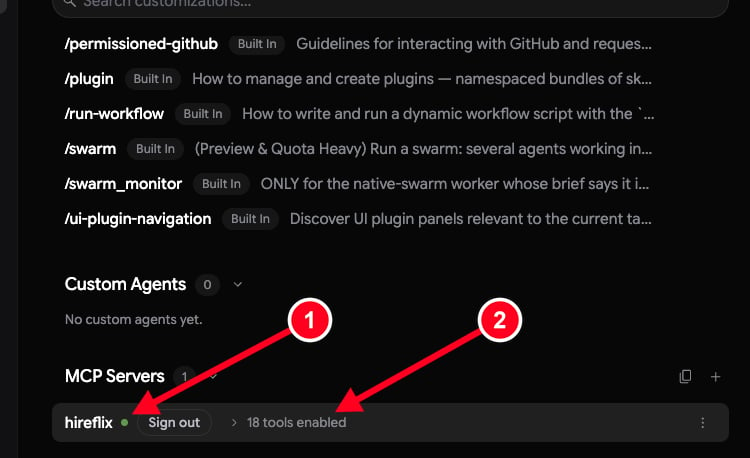
See the Antigravity flow from first prompt to result
See the Antigravity flow from first prompt to result
Click New Conversation (1) and type 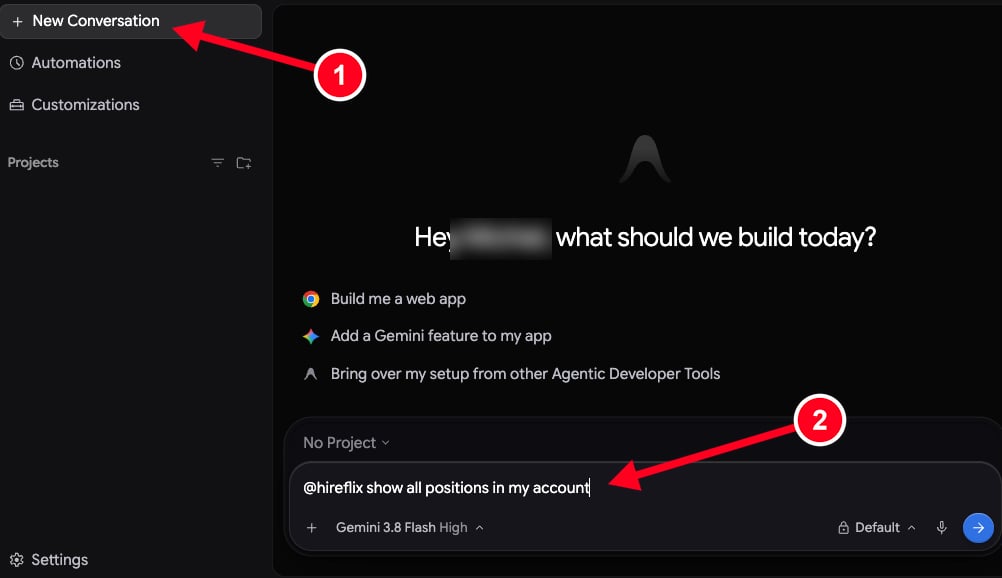
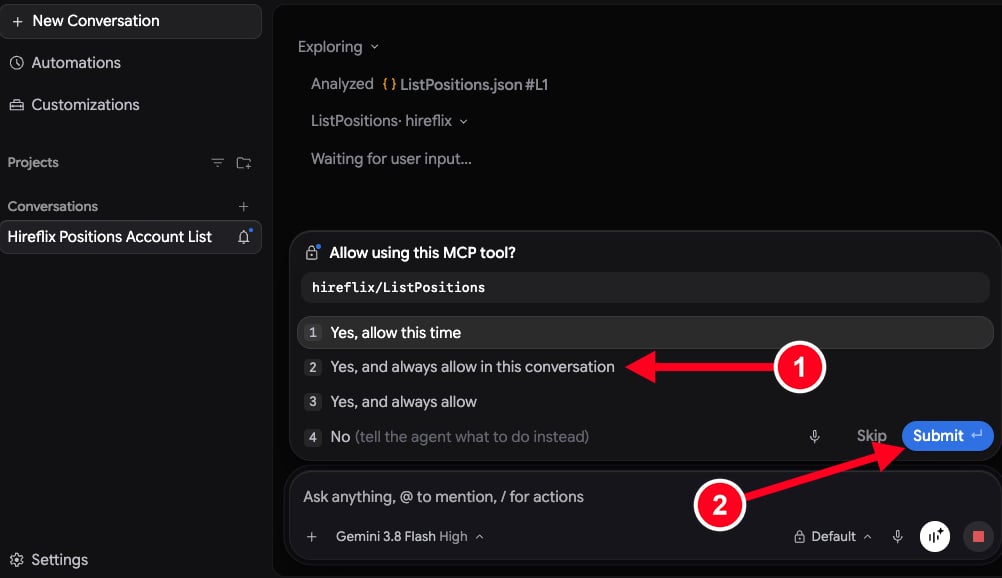
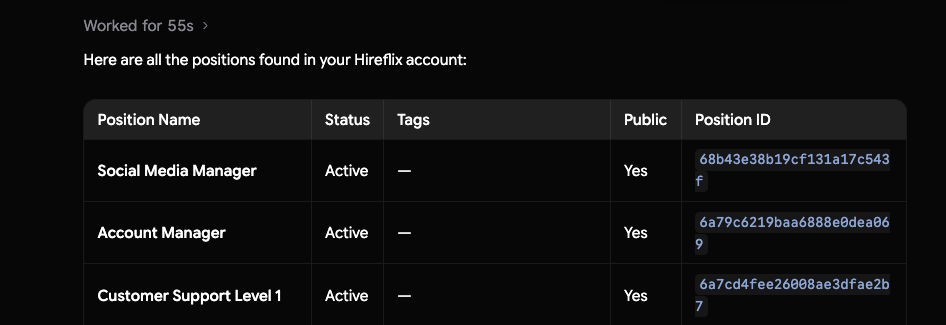
@hireflix followed by your question (2), for example:Use the skill
1
Download Google Antigravity
Download and install Google Antigravity from antigravity.google/download, open it, and sign in with your Google account.
2
Start creating a plugin
In Antigravity, the skill becomes a plugin. Click Customizations in the left menu (1) and switch to Installed in the top right (2). In the Plugins section at the top, click + Create (3). This opens a new chat with plugin tagged, where Antigravity’s agent builds the plugin for you.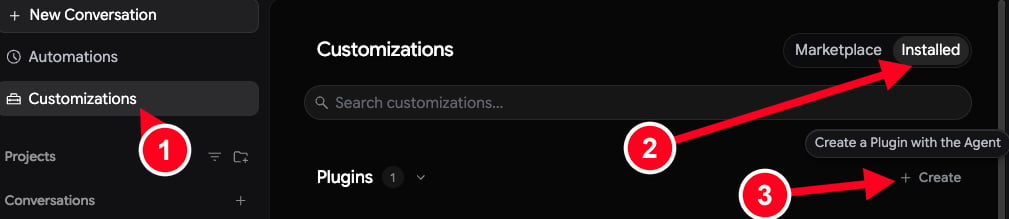
3
Optional: switch to Turbo mode
Creating the plugin takes a while, and Antigravity asks for permission to run a lot of commands along the way. If you don’t want to approve each one, click the permissions menu next to the send button (it says Default) (1) and choose Turbo (2). Antigravity then runs all commands without asking.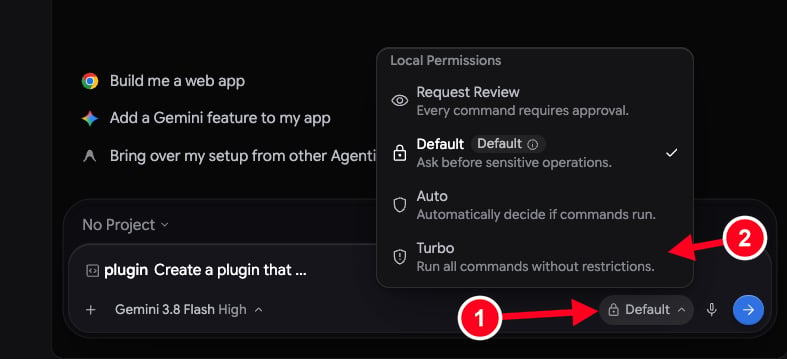
4
Ask Antigravity to create the plugin from the skill file
Replace the suggested text with this instruction, which includes the link to the Hireflix skill file, and send it (1):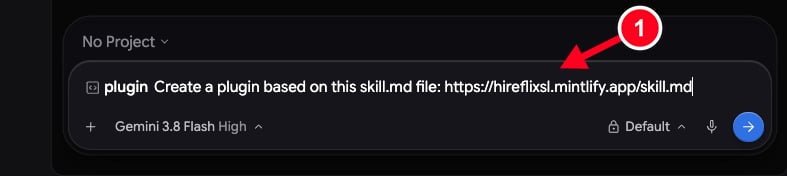
5
Check that the plugin is installed
When Antigravity is done, go back to Customizations → Installed. Hireflix now appears in the Plugins list.
6
Add your API key and ask a question
Click New Conversation, type 
@, and pick the Hireflix plugin (1). Then ask your question and give it your Hireflix API key (2). See the Quickstart if you still need to create one. For example:Also connected the Hireflix MCP? Make sure you pick the Hireflix plugin here, not the
hireflix MCP server.Try it out
Click New Conversation and start your message with@hireflix: