

Not sure which to pick? Go with the MCP. See MCP or skill? for the details.
Connect with the MCP (recommended)
1
Open your connector settings
In Claude, click your account name and open Settings. Click Customize in the left menu and open the Connectors tab. Then click the Add button in the top right and choose Add custom connector.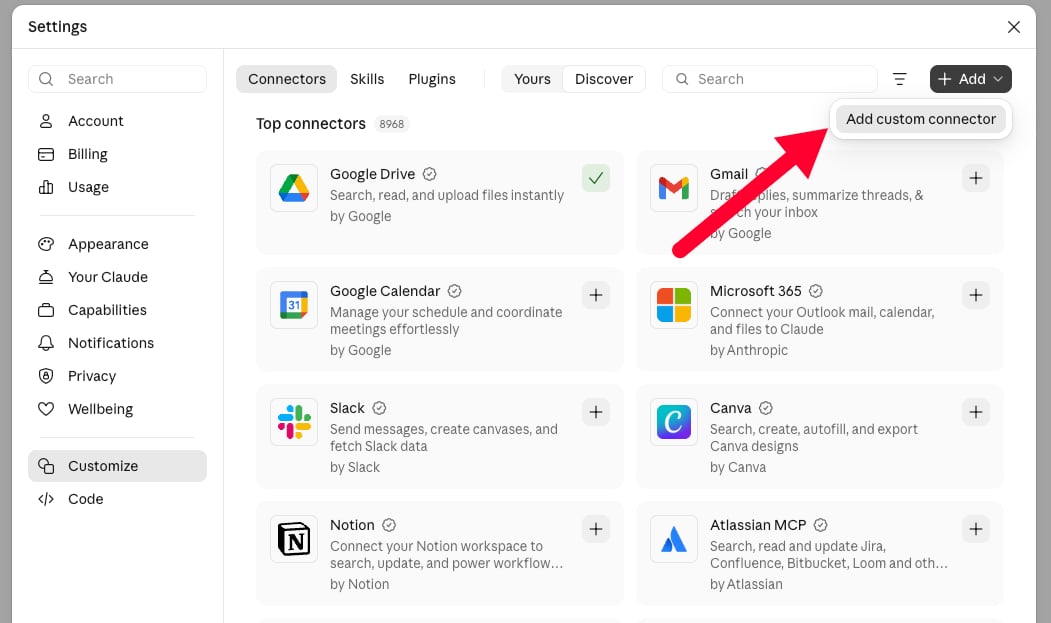
2
Enter a name and the MCP URL
Name the connector Click Continue.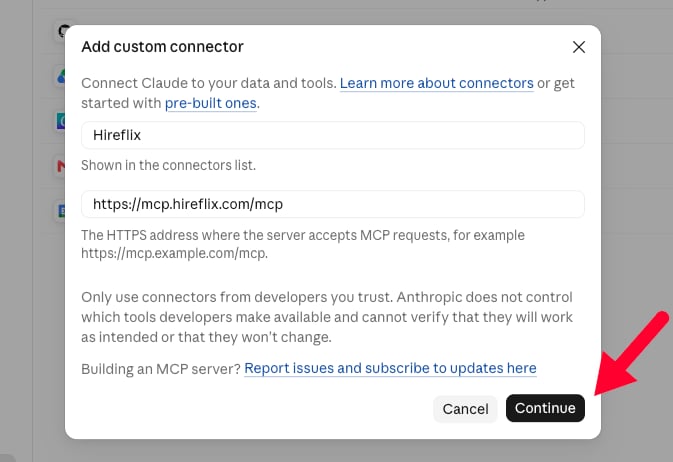
Hireflix and enter the MCP server URL:3
Keep the default connection settings
Claude detects how to connect to Hireflix and pre-fills the authentication settings (Sign in now and Register automatically). Leave them as they are and click Add.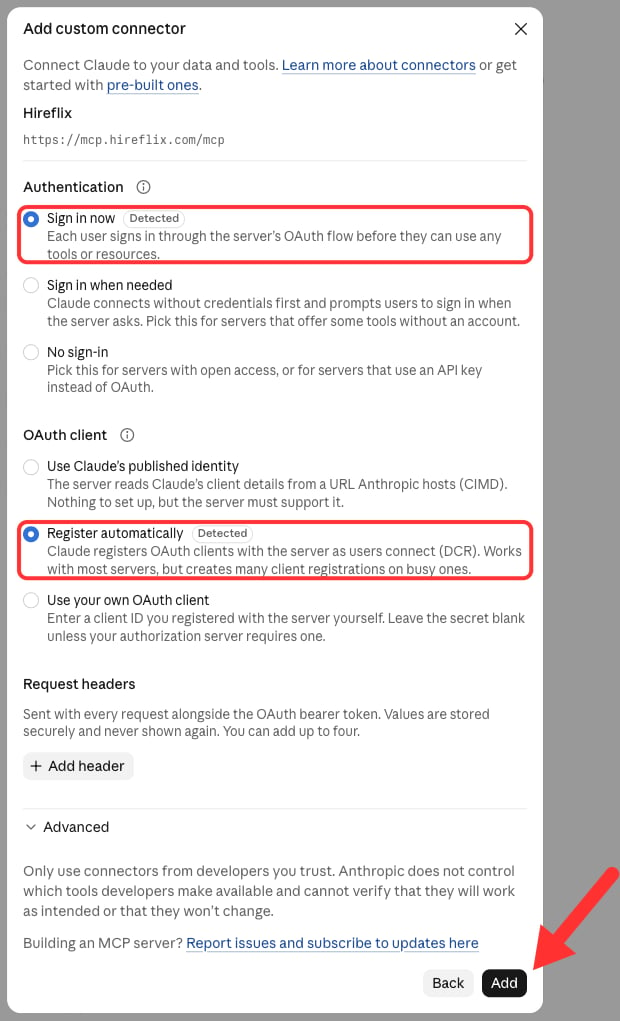
4
Click Connect
Claude opens the Hireflix connector page, which tells you you’re not connected to Hireflix yet. You can always find this page again under Settings → Customize → Connectors, in the Yours list. Click Connect to start linking your account. This opens a connection request on Hireflix. If you’re not logged in to Hireflix yet, log in first.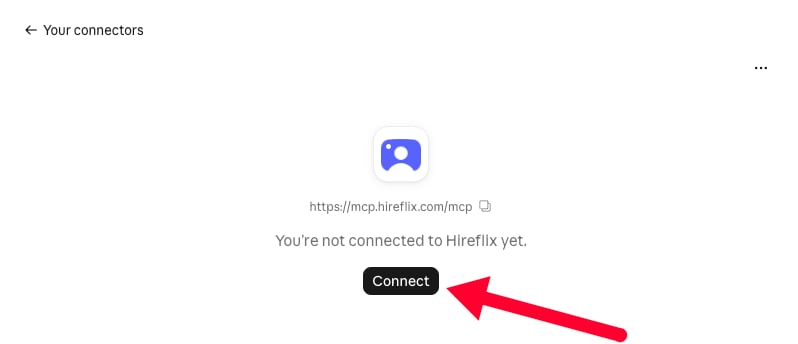
5
Allow Claude to access your account
Hireflix shows what Claude will be able to do. Click Allow to give it access. This lets Claude: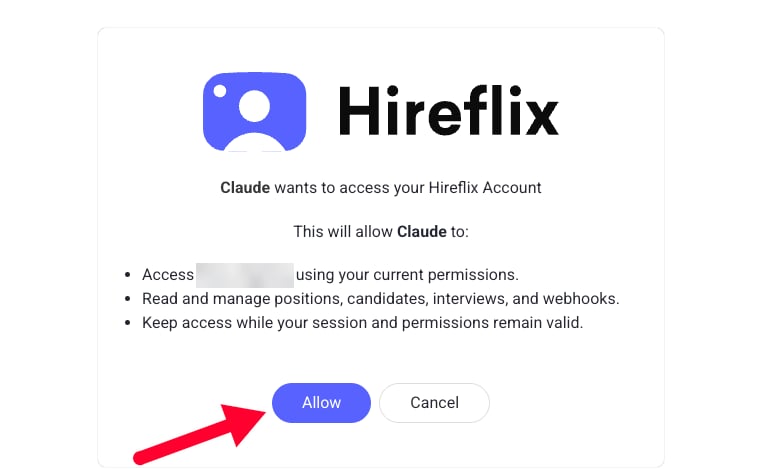
- Access your Hireflix account using your current permissions.
- Read and manage positions, candidates, interviews, and webhooks.
- Keep access while your session and permissions remain valid.
Fine-tune tool permissions (optional)
Fine-tune tool permissions (optional)
In Claude, go to Settings → Customize → Connectors, switch to Yours, and open Hireflix to choose exactly which tools Claude may use. Tools are split into Read-only tools and Write/delete tools, and for each tool you can pick: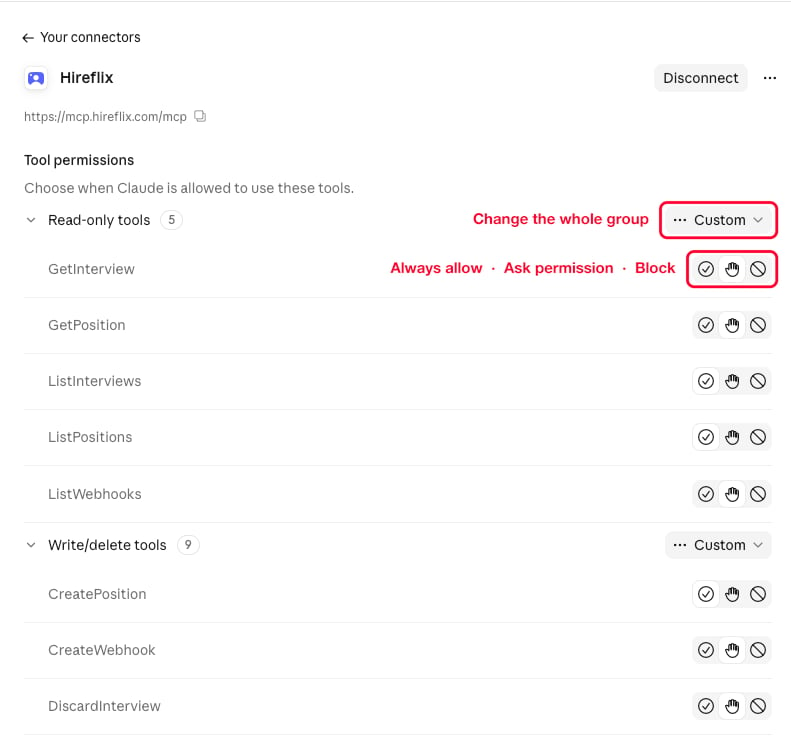
- Always allow: Claude uses the tool without asking.
- Ask permission: Claude asks you before every use. This is the default for every tool.
- Block: Claude can’t use the tool at all.
Use the skill
Prefer to work with an API key, or want Claude to write GraphQL for your own integration? Use the skill instead.1
Allow the Hireflix websites in Claude
In Claude, click your account name and open Settings → Capabilities. Under Create and edit files, make sure Use the internet while making files is turned on. Then click Manage next to Allowed websites.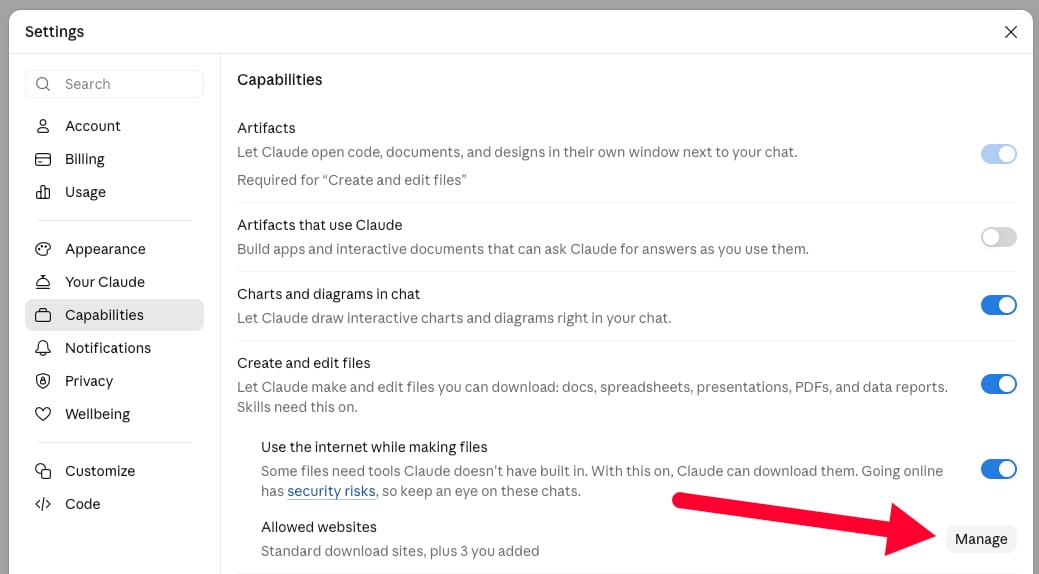
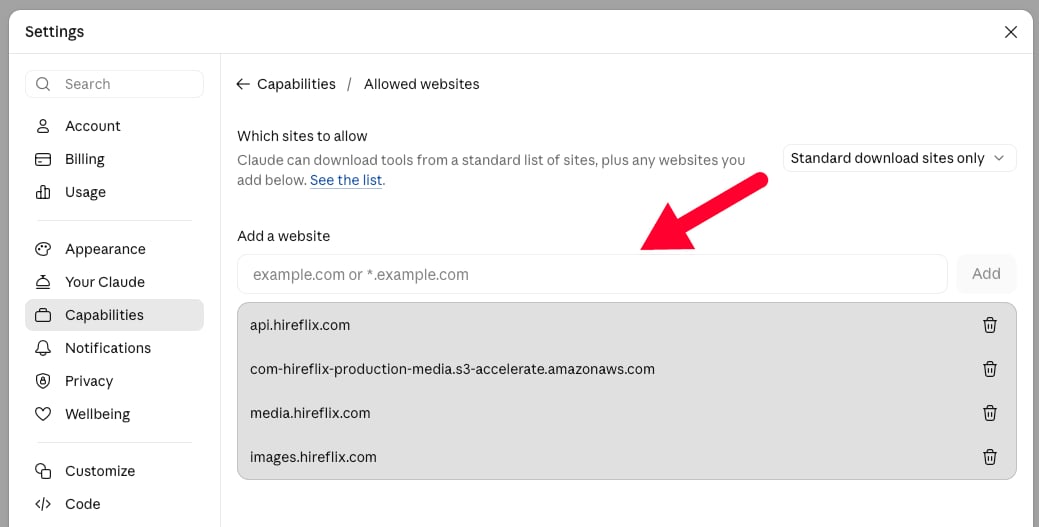
api.hireflix.com— the GraphQL API endpoint Claude talks to for every query and mutation.media.hireflix.com— where signed video playback URLs resolve; needed whenever Claude fetches or plays back an interview video.com-hireflix-production-media.s3-accelerate.amazonaws.com— the signed S3 URL Hireflix issues for video uploads (intro, outro, or per-question videos).images.hireflix.com— where uploaded question images are served; needed whenever Claude fetches or shows you an image from an image prompt question. (Uploading an image goes throughapi.hireflix.com, so it doesn’t need this domain.)
2
Get the Hireflix skill file
Open hireflixsl.mintlify.app/skill.md and save the page as
skill.md. You can hit CTRL + S or on Mac CMD + S to store the page as skill.md on your machine.3
Upload the skill to Claude
In Claude, click your account name and open Settings. Click Customize in the left menu and open the Skills tab. Then click the Add button in the top right and choose Upload skill.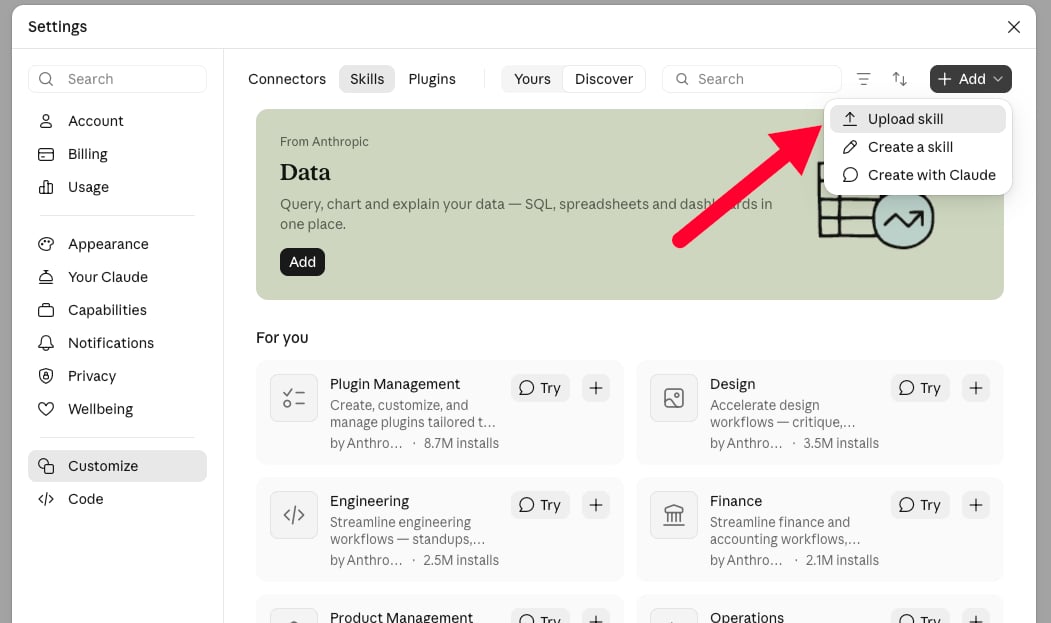
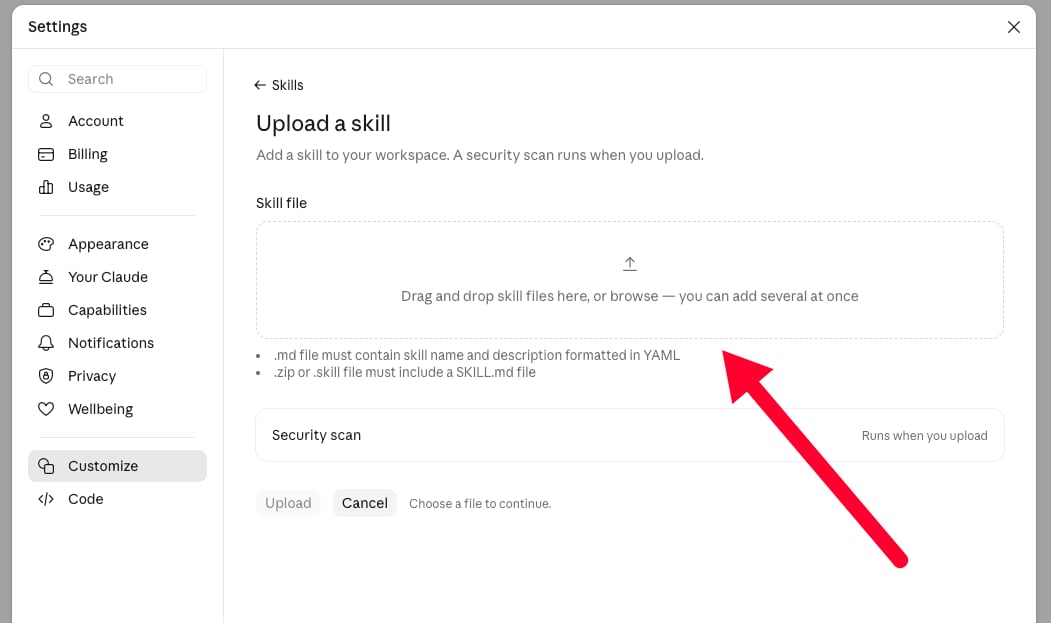
skill.md file you just saved into the Skill file box (or click it to browse for the file), then click Upload. Claude runs a security scan on the skill when you upload it.4
Start a new chat and add your API key
Start a new chat (so the allowed websites from step 1 apply), and give Claude your Hireflix API key so it can authenticate against
api.hireflix.com. See the Quickstart if you still need to create one.Try it out
Start a new chat and ask:Using Claude Code (terminal)?
Using Claude Code (terminal)?
Add the Hireflix MCP with one command:Start Claude Code, run
/mcp, select hireflix, and choose Authenticate. Log in to Hireflix in your browser and click Allow.