

Overview
Custom branding brings the interview experience closer to your company. Set your brand color and logo so candidates recognize your company throughout the interview.Steps
1
Go to Custom Brandings
Navigate to Account > Custom Brandings.
2
Create a new branding
Click Create a new branding.
3
Upload your logo
Upload your company’s logo.
4
Set a brand color
Pick a brand color. If you’ve already uploaded your logo, the color picker will pull colors straight from it, so you don’t need to enter color codes yourself.
5
Preview your theme
Preview the theme on the right to make sure you like what candidates will see.
6
Save your branding
Click Save to apply your branding.
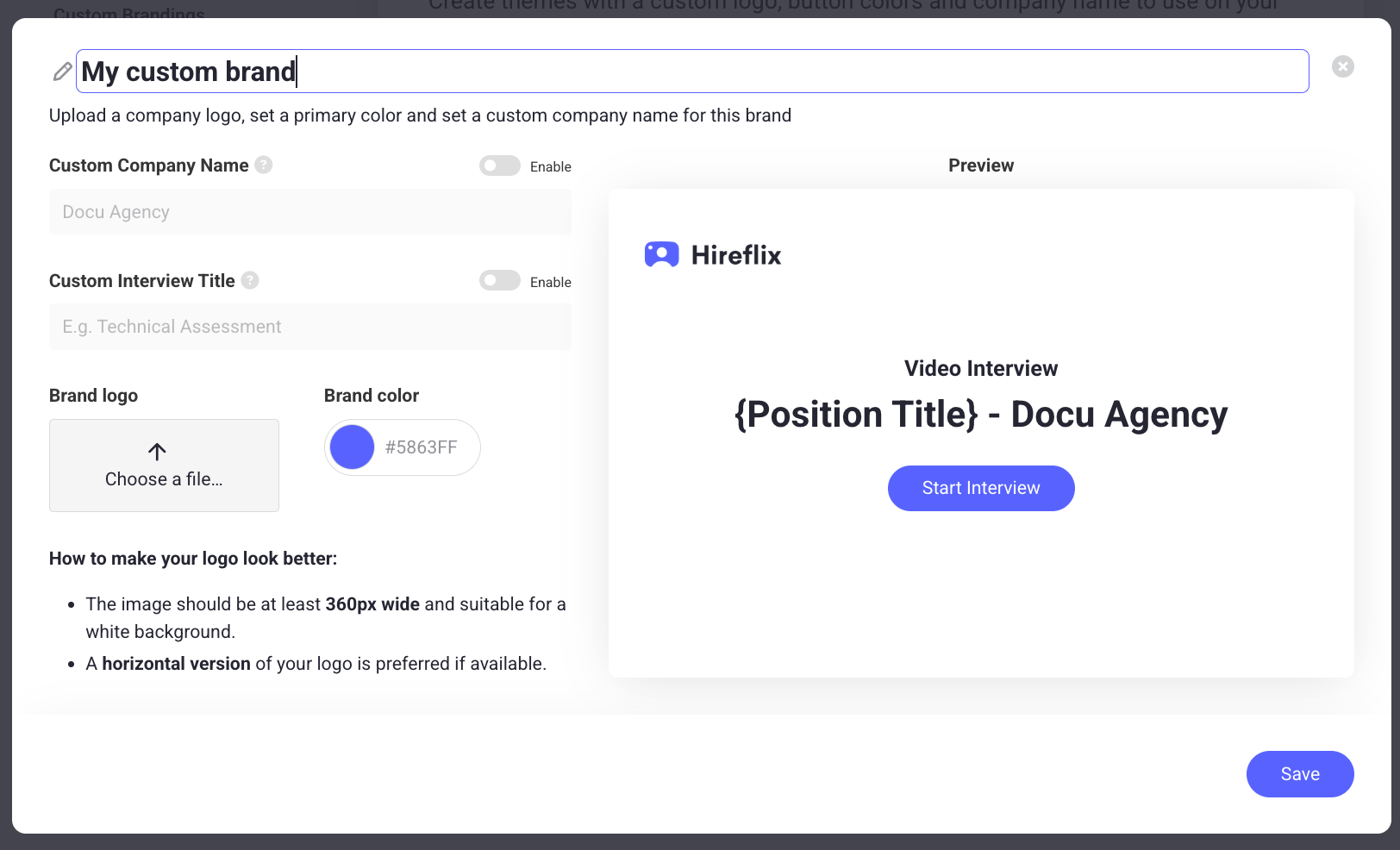
Custom company name
Each branding can have its own company name. When Custom Company Name is enabled, that name replaces your account’s company name on every position that uses this branding: on the interview page, where the title reads “Position title - Company name”, and in the emails candidates receive. Use it when you interview on behalf of different companies or brands, for example as a recruitment agency. The usual setup is one branding per client, with the client’s name, logo and color, so everything candidates see is consistent. You can also keep your own logo and colors with your client’s name. Either way, give each branding a clear name (for example “Agency - Client”) so your team always picks the right one for each position.Custom interview title
The interview title is the small heading above the position title on the interview page. It’s off by default, and candidates see “Video interview”, automatically in the language of their browser. When Custom Interview Title is enabled, your text replaces that heading on every position that uses this branding, always in the wording you typed, and the start button simply says “Start”.Applying a brand to a job position
You can also reach Custom Brandings while tailoring a job position: open the position’s settings and select which brand to apply to it, or add a new one. Choosing to add a new brand takes you straight to the Custom Brandings page described above.Learn next?
Learn how to control who on your team can access each position.